 LECPServer
Simulation PLC
On this page
LECPServer has a built-in simulated PLC node environment, which can simulate LECPServer when there is no PLC online.
How to configure
- Click
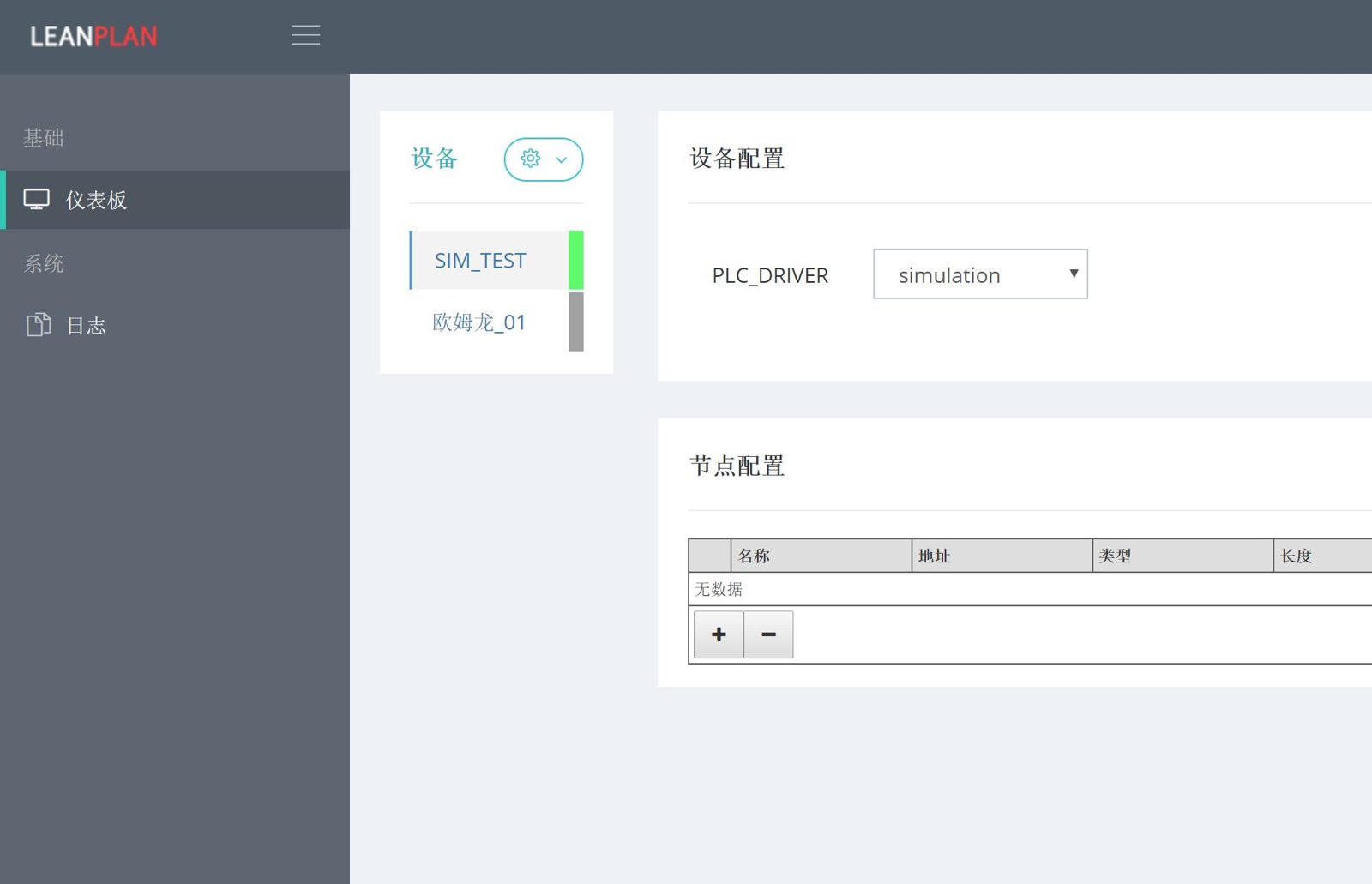
"Add Device"and fill in the device name, such as "SIM_TEST" - Select
"Simulation"in PLC_DEVICE in the"Device Configuration"form - Click the
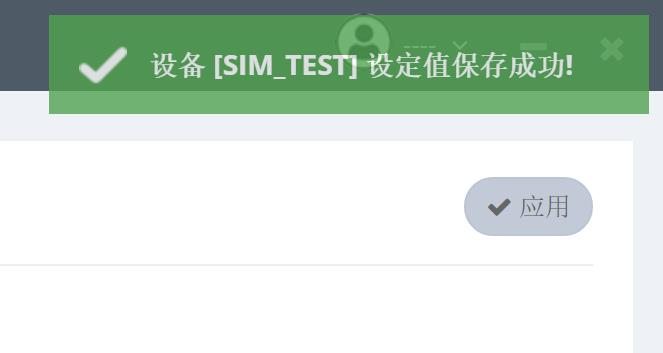
"Apply"button in the"Device Configuration"form, at this time the "SIM_TEST setting value is saved successfully" prompt, which proves that the node has been successfully added to the LECPServer
Screenshot
successful save prompt
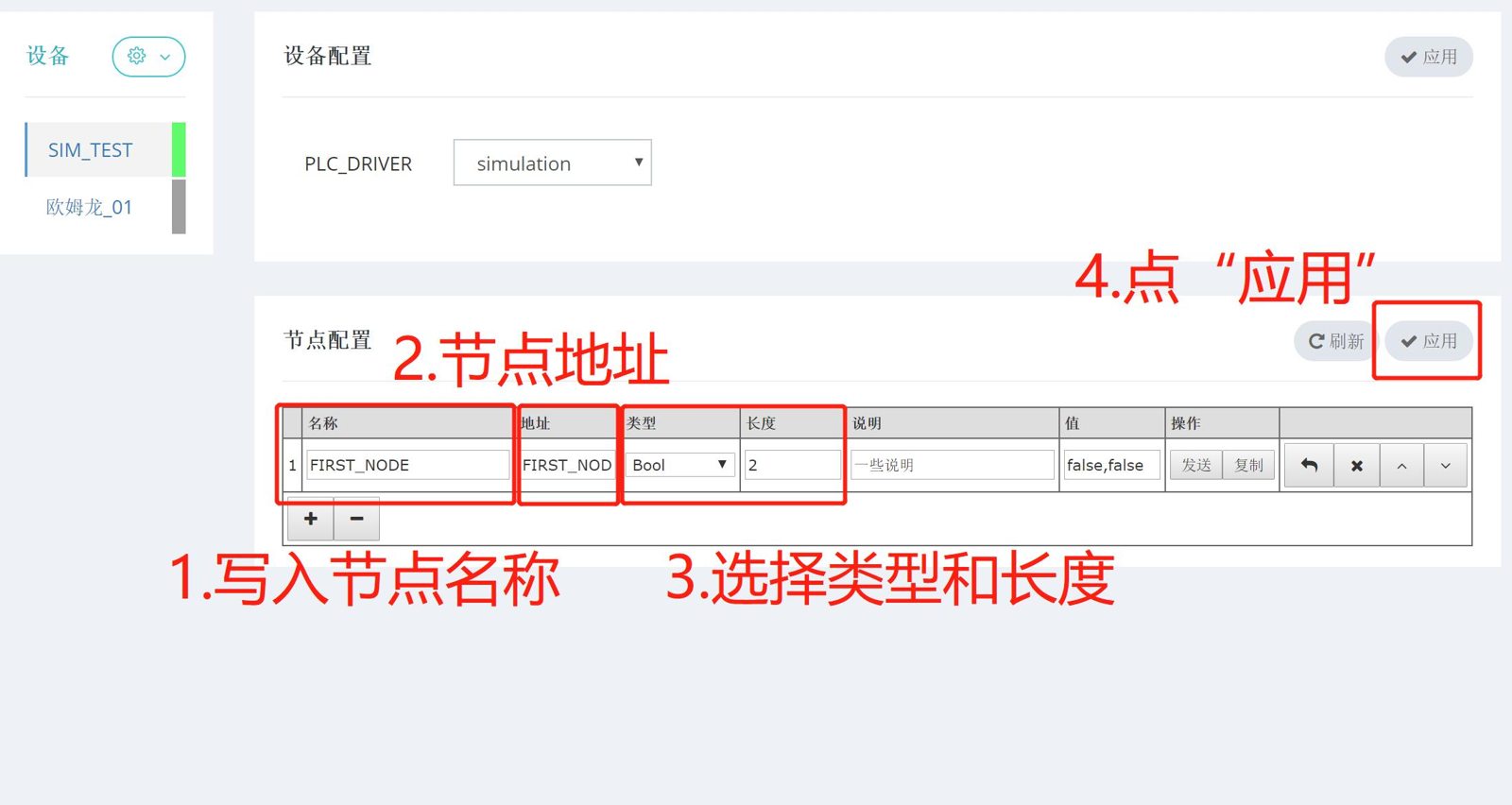
After the device is successfully added, the specific node of the device can be edited. The editing method is as follows
- Click the
"+"button to add a plc node - Enter
node name,like "FIRST_NODE" - Enter the
addressof this node by "FIRST_NODE"(read and write FIRST_NODE in PLC) - Select the
typeof the node,we using type of "BOOL" Node length, used to set the array length of the node,Here we set it to "2", which means that the node is a BOOL array consisting of 2 elements- Click the
"Apply"button, the node has taken effect, and you will see current value appear in the "Value" column of the node
About debugging
After the node is configured, we can debug it by the method of chapter about debugging